Sunday, June 1, 2014

My Wi-Fi connection not using full speed of 300Mbps


I have two Netgear Wi-Fi routers that have Wi-Fi connections enabled with speeds up to 300Mbps. However, the laptop, tablet, etc connects to them with speeds usual in the 78-144Mbps range, never over 150Mbps. This didn’t bother me much as these speeds are still over my broadband connection speed (60Mpbs), and I don’t transfer many files between laptop and other computers in the network. But still, why does this happens?

The documentation says “The WNR3500 router will use the channel you selected as the primary channel and expand to the secondary channel (primary channel +4 or -4) to achieve a 40 MHz frame-by-frame bandwidth. The WNR3500 router will detect channel usage and will disable frame-by-frame expansion if the expansion would result in interference with the data transmission of other access points or clients.”

I thought the low speed was caused by router settings. My router had channel 4 set as primary, which left only 4+4=8 as secondary. I thought some interference on channel 8 was preventing it to be used, so I changed the primary to 5, with 1 and 9 now as options for secondary. But that didn’t increase the connection speed.

Today, after digging more, I looked on laptop at adapter’s settings. There, the Channel Width on 2.4GHz range was set to “20 MHz Only”. I set it to Auto, let the laptop reconnect, and voila! Now the speed increased, reaching values in the 270-300Mhz range, as it should have.

image

image

It didn’t make sense, why won’t be this set to Auto by default? Then I remembered. It was.

3 years ago I was experiencing frequent connection drops, and a lot of reconnecting – I was not able to maintain a RemoteDesktop connection to work without the laptop pausing for reconnect every couple of minutes. It was really annoying. And it was me who limited the channel width to 20MHz, which seemed to reduce the number of connection drops.

Well, now I have a second Wi-Fi router to extend the range, and the laptop’s connection at 300Mbps seems more reliable now. So I guess I’ll keep the laptop’s channel width back to its default settings.

Unfortunately the Surface RT’s network adaptor doesn’t have a similar setting, so the tablet will have to connect to 150Mbps max. No loss there until Comcast will allow such speeds at reasonable prices.

Wednesday, November 27, 2013

Using Visual SourceSafe 2005 with Visual Studio 2010, Visual Studio 2012 and Visual Studio 2013

Visual SourceSafe is out of mainstream support since 2012 and will be in Extended support until 2017. However, may people use the product past its lifetime dates, if for no other reason at least because they have programs developed originally and stored in VSS databases that will still need maintaining.
Microsoft Visual SourceSafe 2005 will still install on modern computers, and will still integrate with recent version of Visual Studio
image

Opening projects from source control

Visual SourceSafe 2005 was changed from VSS 6.0 and integrated with the File/Open Project/Solution dialog in Visual Studio. On Windows XP, Vista (and 7, I think), the Open dialog showed a dedicated ‘Visual SourceSafe’ icon in the tray, so it was intuitive to discover the Open from source control functionality. Since then, Windows changed the layout of the Open dialog, and SourceSafe option can only be found if you scroll the folders tree to the top…
Open Project from SourceSafe in VS 2005image
Even worse, the namespace extension providing integration with Explorer and the Open dialogs broke during the years. Here are the options on how to fix the Open From Source Control functionality:

A) Use SourceSafe 6.0 way of opening from source control.

When it integrated with the File/Open dialog, SourceSafe 2005 has set some registry keys that make VSS Integration package in VS hide the OpenFromSourceControl commands under File/SourceControl menu. You can modify the registry and bring back those commands:
1) Using regedit, open the registry and locate under
[HKLM\SOFTWARE\Microsoft\SourceSafe\Namespace Extension]
DisableOpenFromSourceControl == (DWord)1.

2) Change the value to (Dword)0 or delete the value completely. There will be a similar value for SourceSafe Internet provider under Microsoft\SourceSafe\RemoteAccess\Namespace Extension, change that as well
(Note: The values are under Wow6432Node hive on 64-bit machines)
image
3) Restart Visual Studio and now you should have under File/SourceControl a menu item that allows opening solution from source control.
image
4) Make sure to select a different location when opening from source control in a new enlistment (the equivalent of “Change Destination Folder” in the open functionality from the OpenProject dialog)
 image

B) Fix the namespace extension.

1) If you installed VSS 2005 RTM and try to navigate the namespace extension you will see there are no items available under SourceSafe node. Clicking on the SourceSafe icons in the tree results in an error message “No such interface supported”

imageimage
This error has been fixed in the SourceSafe 2005 Update build, so please install VS80-KB943847-X86-INTL (which you should do anyway)
2) Now you should be able to navigate the SourceSafe databases in the File/Open dialog, you should be able to select a solution or project and change the scc location, however, when you’ll try to open the solution Visual Studio will display another error message “The selected file is not a valid solution file”.
image
Why does this break? Surely you’ve selected a solution file! In order to return the path to the solution to VisualStudio, TDNamespaceExtension.dll which is the NSE deployed by SourceSafe needs to create a URI like msss://SoursafeDatabasePath/~files/PathToTheSolution (there’s more to that, but you get the idea). Unfortunately the MSSS scheme parser is a component implemented by a dll that ships with VisualStudio, so in order to create the parser TDNamespaceExtension looks up in registry under Visual Studio registry hive; as SourceSafe 2005 shipped in the box with Visual Studio 2005 (VS 8.0),  it looks under this registry key
HKLM\Software\Microsoft\VisualStudio\8.0\CLSID\{53544C4D-CFBF-404e-9E37-19C8BB80F6E3}
Of course this key does not exist if you install a more recent version of Visual Studio…
For  Sourcesafe to find the correct parser, the TDNamespaceExtension.dll had to be updated to look under the right key. To make VSS work with VS2008 and VS2010 Microsoft released patches to TDNamespaceExtension (e.g. KB976375 is what you can install for VS2010). But for VS2012 and VS2013 Microsoft hasn’t released anymore such updates, probably due to SourceSafe reaching the end of mainstream support. Sad smile
If you have multiple versions of VisualStudio installed (e.g. I have VS2010, VS2012 and VS2013 installed) and have fixed VSS to work with one version of VS you won’t (I have fixed it for VS2010 installing the KB article mentions above) you see this problem in the other versions, because VSS is able to find the parser from that version of VS (from VS2010 in my case).
Anyway, it’s easy to fix the problem manually even without KB articles, by setting a registry value which tells SourceSafe where to locate the MSSS scheme parser. Besides looking under the VS 8.0 hive, TDNamespaceExtension also looks in a common place, under HKCU\Software\Classes\CLSID\{53544C4D-CFBF-404e-9E37-19C8BB80F6E3}
So we can register the parser there, pointing to the current version of Visual Studio you have installed. E.g.:
- Save the content below to a file with .reg extension
- Edit the 12.0 if necessary and replace with the version of VS you have installed
- Double click the file and import it into registry.
---------------------------------------------------------------------------------
Windows Registry Editor Version 5.00
[HKEY_CURRENT_USER\Software\Classes\CLSID\{53544C4D-CFBF-404e-9E37-19C8BB80F6E3}]
"InprocServer32"="C:\\Program Files\\Microsoft Visual Studio 12.0\\Common7\\IDE\\VS SCC\\VssProvider.dll"
"ThreadingModel"="Both"
@="VAPI Scheme Parser Msss"

---------------------------------------------------------------------------------
Now you should be able to open file from source control using the File/Open/Project without running into the “The selected file is not a valid solution file” error.

Note: The above file worked for me on a 32-bit machine. On my 64-bit machine, I have the VAPI parser registered under multiple locations (I think the last one is written by VS setup and gets copied into 12.0_Config hive on first run); it won't hurt to register it similarly though.

---------------------------------------------------------------------------------
Windows Registry Editor Version 5.00
[HKEY_CLASSES_ROOT\Wow6432Node\CLSID\{53544C4D-CFBF-404e-9E37-19C8BB80F6E3}]
@="VAPI Scheme Parser Msss"

[HKEY_CLASSES_ROOT\Wow6432Node\CLSID\{53544C4D-CFBF-404e-9E37-19C8BB80F6E3}\InprocServer32]
@="C:\\Program Files (x86)\\Microsoft Visual Studio 12.0\\Common7\\IDE\\VS SCC\\VssProvider.dll"
"ThreadingModel"="Both"

[HKEY_CURRENT_USER\Software\Classes\Wow6432Node\CLSID\{53544C4D-CFBF-404e-9E37-19C8BB80F6E3}]
@="VAPI Scheme Parser Msss"

[HKEY_CURRENT_USER\Software\Classes\Wow6432Node\CLSID\{53544C4D-CFBF-404e-9E37-19C8BB80F6E3}\InprocServer32]
@="c:\\Program Files (x86)\\Microsoft Visual Studio 12.0\\Common7\\IDE\\VS SCC\\VssProvider.dll"
"ThreadingModel"="Both"

[HKEY_CURRENT_USER\Software\Microsoft\VisualStudio\12.0_Config\CLSID\{53544C4D-CFBF-404e-9E37-19C8BB80F6E3}]
"InprocServer32"="C:\\Program Files (x86)\\Microsoft Visual Studio 12.0\\Common7\\IDE\\VS SCC\\VssProvider.dll"
"ThreadingModel"="Both"
@="VAPI Scheme Parser Msss"

[HKEY_LOCAL_MACHINE\SOFTWARE\Wow6432Node\Microsoft\VisualStudio\12.0\CLSID\{53544C4D-CFBF-404e-9E37-19C8BB80F6E3}]
"InprocServer32"="C:\\Program Files (x86)\\Microsoft Visual Studio 12.0\\Common7\\IDE\\VS SCC\\VssProvider.dll"
"ThreadingModel"="Both"
@="VAPI Scheme Parser Msss"
---------------------------------------------------------------------------------

Pwned


Today I had my system infected with a trojan. I don’t even remember when it was the last time to have one… The worst part of it – I didn’t get it by visiting dubious sites (pr0n, warez), but from a news site (http://news.com). Most likely the malware was masquerading as an ad and exploited some unpatched hole in Adobe Flash (caveat!) as the site is full of Flash advertisements and had problems in the past, too.
I was browsing the news and suddenly the browser disappeared (crashed). I restarted it thanking Adobe and thinking nothing more of it. Soon after that, problems appeared.
The first red flag was an elevated prompt from Windows 7, asking for permission to run ‘SoftwareUpdate.exe’. Since I was not installing anything, I canceled it. Yet the prompt came again, and again, and again. From the dialog’s details, the program was "c:\Users\alinc\AppData\Local\temp\SoftwareUpdates.exe", so I renamed the executable to *.exe_ extension, and canceled the prompt again. This time I got error messages that updates can’t be installed, so I set up to investigate who was displaying it. To my surprise, I could not launch TaskManger (taskmgr.exe) nor SysInternal’s ProcessExplorer (procexp.exe). As soon as the programs were started, they were closed automatically... It was clear now I was infected.
I logged off, and switched users, logging in with a different local Administrator account. Problems occurred here as well, I still could not launch ProcExp. Soon I started to get tons of error messages “A Write command during the test failed to complete”, culminating with a “System error, hard disk failure detected”. All the icons on desktop disappeared leaving only one “Smart_Hdd” shortcut.
Screenshot2
I opened a command prompt and stated to see problem here as well - folders and files disappeared from ‘dir’ commands. I renamed procexp.exe to something else (alin.exe) and this way I was able to launch it without being closed anymore. You can see in one look Process Explorer highlighted in gray 2 suspect programs (C:\ProgramData\rmIhrYfwFjUdy.exe and C:\ProgramData\QFUDzzwTiL1aQy.exe): they had weird names, were launched from ProgramData, had no Description or CompanyName.
screenshot1
Even more worrying, rmIhrYfwFjUdy.exe had launched a recursive “attrib.exe /s +h \*.*” (not shown, I killed it immediately)– this was hiding all the files and folders on my computer! I believe all these was a scamming scheme to convince me into buying some “cleanup program” that would fix the “hard drive failures” “detected” and reported in the previous messages.
I tried to stop/kill the malicious programs by pressing Delete, but those were protecting each other – as soon as one was killed, the other one was immediately starting it up again. The solution is to right click them, and use “Suspend” command. Suspend both, then you’ll be able to kill them without coming back. Now I could move the binaries out of the way for my collection and investigate further.
I run another Sysinternal/Microsoft tool, Autoruns. This indicated rmIhrYfwFjUdy.exe was launched at logon time via a registry value written under HKLM\SOFTWARE\Microsoft\Windows\CurrentVersion\Run. I deleted that as well.
I updated Microsoft Security Essentials to the latest definitions, and I started a scan. With latest definitions, it flagged as malware two of the binaries. QFUDzzwTiL1aQy was recognized as Win32/Bumat!rts, and SoftwareUpdate was recognized as Win32/Tibs!IT. The 3rd program was not recognized, so I used the Microsoft’s Virus Submission Sample Page to submit rmIhrYfwFjUdy.exe for further analysis. 
The trojan left more traces on my computer:
- The "Smart HDD" shortcut on desktop pointing to QFUDzzwTiL1aQy.
- A “Smart HDD” program group with 2 entries, one masquerading as an “Uninstall” program, but pointing to the same malware.
- Most folders and files were hidden. I had to run recursive ‘attrib –h’ of my own to reset attributes.
- The StartMenu and Taskbar settings were all changed. All the icons in start menus were hidden, the taskbar was set with Vista-like settings (program buttons with texts, no grouping, system tray showing all icons, etc). I had to go to Properties and explicitly set or reset all to defaults.
Startmenu
- All icons under “Administrative Tools” were deleted. In fact, the whole “C:\ProgramData\Microsoft\Windows\Start Menu” folder was cleaned of all files.
AdminTools
- The “C:\Users\All Users” folder is also gone. There may be other effects I haven’t found yet…
Basically I’ve lost all the shortcuts/icons of all installed programs, but I’m still pleased I caught it in time before it caused more damage - the situation could have been much worse…
In any case, this was one more win for Sysinternals tools.

Sunday, November 24, 2013

Using color themes with Visual Studio 2013 Express Editions

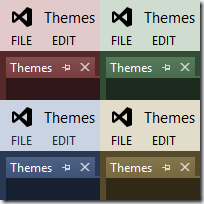
Microsoft has recently released Visual Studio 2013 and Matthew Johnson has released a new version of the Visual Studio 2013 Color Theme Editor. Unfortunately it doesn’t support (yet?) the Express editions of VS2013.
My previous article about using color themes with Visual Studio 2012 seemed to have been quite popular, it’s the most accessed article on my blog...  Therefore, to continue the tradition, here is how to install the new theme colors available with Matt’s extension to work with the Visual Studio 2013 Express.
1) First, download the zip file http://www.alinconstantin.net/download/VS2013Themes.zip – it contains the 8 pkgdef files defining the colors of the 8 new themes from Matt’s extension, plus the 9th pkgdef with the theme names.
Note: If you get errors when you try downloading the file, rest assured the file is still there on my home server. It’s likely a temporary problem with my Internet connection or the DNS servers, so try again later. (I’d also appreciate a warning mail if I don’t notice the problem myself and it doesn’t get resolved in 1 day)
2) Create a folder (say named “Themes”) and unpack the zip file in that folder. The location of the folder depends on the Express edition you’re using. E.g. create the folder under this path:
Express for Windows Desktop %ProgramFiles%\Microsoft Visual Studio 12.0\Common7\IDE\WDExpressExtensions
Express for Windows %ProgramFiles%\Microsoft Visual Studio 12.0\Common7\IDE\VSWinExpressExtensions
Express for Web %ProgramFiles%\Microsoft Visual Studio 12.0\Common7\IDE\VWDExpressExtensions

Note: If running on a 64-bit machine, instead of %ProgramFiles% use %ProgramFiles(x86)% because Visual Studio is a 32-bit process.
Note 2: Visual Studio Express for Windows Phone was not released for 2013. If you need to colorize Express for Windows Phone 2012, see the Using color themes with Visual Studio 2012 Express Editions article.
image
3) Open a “Developer Command Prompt for VS2013”. When using Windows 8, search for “Visual Studio tools” and open the folder found. Visual Studio 2013 no longer installs the tools shortcuts directly in the Start Menu to avoid polluting the menu with 9+ rarely used shortcuts.
imageimage
Anyway, once there type the command forcing VS Express to re-read the extensions settings.
image
Again, that depends on the version of Express used:
Express for Windows Desktop wdexpress.exe /updateconfiguration
Express for Windows vswinexpress.exe /updateconfiguration
Express for Web vwdexpress.exe /updateconfiguration

4) Start VS Express  and the themes should now be available in Tools/Options/Environment/General page.
image
Should someone with a VS Professional/Ultimate install use Matt’s extension to create/edit a custom theme that you want to use on Express, that’s also possible. You will need a pkgdef file with the new theme, which you can get in two ways:
  • On the machine with the VS install look under ‘%LocalAppData%\Microsoft\VisualStudio\12.0\Extensions’ folder. There should be some subfolders with random names, and one of them will contain a Colors.pkgdef file containing the theme of interest (open it with notepad and you should see in the beginning the theme’s name to confirm). Copy that file in the Themes folder created in step 2) above, rename it to give it a more appropriate name
  • Or, you can open the theme of interest in editor, and use the Export Theme button in the window's toolbar:
     
    In the FileSave dialog, make sure to set the file type to .PkgDef (by default the extension saves the file as .VsTheme), like this: After exporting the file, copy it in the Themes folder created in step 2) above in your VS Express installation.
Now you can repeat steps 3-4) above to force VS Express read the new extension pkgdef file, and you should be able to use the new custom theme in Tools/Options dialog.

Friday, November 23, 2012

Links to my website are broken

It's probably time to change my DNS registrar... I'm using dotster.com (old namezero.com) for my websites (http://alinconstantin.com / http://alinconstantin.net ), and I just discovered the sites were not forwarding anymore URLs to the dynamic DNS http://alinconstantin.dtdns.net and http://alinconstantin.homeip.net . For some reason, they decided to change the domain from 'URL forwarding' to 'Parked' which pointed to a page with spam links.
I changed that and now the root of the website redirects correctly, but folders and direct page links are still broken, they display some 'page not found' frame with the same spam links instead of redirecting to the matching folder on the dtdns.net site.


I hope this is not some 'feature' added to get more spam clicks from others' domains. If the situation persists, it will be bye-bye namezero/dotster after 10 years of using their services...

Meanwhile, if you can't access direct links to my website, use instead the dynamic DNS addresses I mentioned above.

Wednesday, November 21, 2012

Using the Visual Studio’s Search Control

Visual Studio 2012 uses in a couple of windows a control that allows searching the window content. Examples are Quick Launch, tool windows like Toolbox/SolutionExplorer/ErrorList, etc.

imageimage

The control can be easily reused in your package and added not only into Toolwindows, but to any piece of UI. This article will show you which interfaces to implement or call to implement a searchable dialog or toolwindow, from both native or managed code.

Too many search controls

Various windows in Visual Studio needed search capabilities, and without a common control to use, in time they have implemented their own solutions. Unfortunately, this leads to UI inconsistencies, usability problems and user confusion. In Visual Studio 2010 there were at least 15 different control implementations for the same purpose – simple search. Below are a couple examples of windows from Visual Studio 2012 that still use private implementations (hopefully in time they'll converge and use the common way)

  • Minidump editor window (File/Open/File, pick a dmp file) allows searching in the modules list. Uses WPF edit/button, doesn't have a consistent start icon, no indication the list is filtered, etc.clip_image002
  • VC Project Property pages have an “All options” page that’s searchable yet their box is just an edit that doesn’t offer any indication search is performed.clip_image006
  • TFS Shelvesets, Build Definitions use text box with watermark image (not a button), again there is no no way to easily clear a searchclip_image008
  • Architecture Explorer uses comboboxes, require enter to start search, there is no other indication search is performed.clip_image010

If you’re consider adding search capabilities to a window in your package, please don’t perpetuate these inconsistencies and use the control provided by the shell team; if you find missing features or have suggestions for improvement, you can send mails to VS Shell team to consider including in next versions.

Anyway, back to implementation.

Implementation considerations

The common search control in Visual Studio is implemented as a WPF control (the Microsoft.VisualStudio.PlatformUI.SearchControl class). Its data model set in DataContext property needs to be a Gel Microsoft.VisualStudio.Shell.Interop.IVsUIDataSource with specific properties/verb names; an example of such data source is the Microsoft.VisualStudio.PlatformUI.SearchControlDataSource class. The control can be directly referenced from Xaml, however, to make it work you’d have to deal with data sources (setting the necessary properties when the verbs are invoked, e.g. setting search status ‘in progress’ when StartSearch verb is called, etc, because the UI binds directly to some of the data source properties), with data source wrapper classes that are marked internal, etc. It can be done (the editor team used it this way), but clearly that’s not the intended way to use the control.

Instead, the control should be used through Visual Studio interfaces like IVsWindowSearch, IVsWindowSearchHost, IVsSearchTask, etc. Beside making the control accessible from native code (via COM), this abstracts you from the control implementation and let’s you focus only on setting up the search and performing the searches.

The GenerIC Case

In order to implement a searchable window, the owner needs to implement the IVsWindowSearch interface.

To setup the search, you need to create first a search host. Query the SID_SVsWindowSearchHostFactory service from the shell, and call IVsWindowSearchHostFactory.CreateWindowSearchHost() function. Pass in as first argument an object identifying the control to be used as parent for the search control. The type of pParentControl argument depends on the UI technology used in your window, e.g. FrameworkElement for WPF, ElementHost for WinForms, or an object implementing IVsUIWin32Element/IVsUIWpfElement and returning the parent indirectly via GetHandle() or GetFrameworkElement() methods.

Once you have the search host, call IVsWindowSearchHost.SetupSearch() and pass in the object implementing IVsWindowSearch interface. There are a couple of things happening during this call:

  • The shell creates the SearchControl WPF control child of the pParentControl specified during host creation
  • The shell creates a settings data source and calls IVsWindowSearch.ProvideSearchSetting. Your window gets a chance to override the default values and influence the behavior of the search control (e.g. set a determinate progress type, or change the search to be instant or on-demand, disable MRU items and the popup, etc)
  • The shell calls IVsWindowSearch.ProvideSearchFilters and ProvideSearchOptions to discover filter and options that will be shown (if necessary) in the search control’s popup
  • The shell creates the necessary data sources and associates them with the search control.
  • If the search control uses MRU items, the search control will use the SVsMRUItemsStore to store/retrieve the items under the IVsWindowSearchHost.Category guid.

As the user types in the search control (default using delayed search start) and the search is started, the shell will call IVsWindowSearch.CreateSearch() function. The shell parses the user input and creates an object implementing the IVsSearchQuery interface (this allows for a consistent parsing of search strings into tokens, and identifying some tokens as filtering tokens). In response to the CreateSearch() call, the search control’s user needs to return an object implementing IVsSearchTask. The shell will then call IVsSearchTask.Start() from a background thread to perform the actual search job. Should the user click the X Stop button while the search is running, the Stop() function will be called on the UI thread on the search task. Should the user click the X Clear button after the search completes or is stopped, the shell will call IVsWindowSearch.ClearSearch()

While the search is running, the search task is supposed to call IVsSearchCallback.ReportProgress() if the search control’s progress type was changed to SPT_DETERMINATE. When the search is complete, call ReportComplete to notify completion and the number of results found.

When the search is no longer needed, one can call IVsWindowSearchHost.TerminateSearch() to release early the resources associated with the control, such as the data sources.

Visual Studio also optimizes for the most common use case. To create a searchable toolwindow you don’t have to worry about setting up the search – instead, simply implement the IVsWindowSearch interface on the same class that implements the tool window pane (IVsWindowPane or IVsUIElementPane), and the shell will take from you the burden of setting up the search and will provide a hosting place for the search control in the toolwindow frame area. Even more, classes in Managed Package Framework (MPF) from like Toolwindow already implement the necessary interfaces so you can simply make the search control appear in your window by overriding SearchEnabled property and return ‘true’.

The Search control in managed toolwindows, with shell hosting

Visual Studio SDK Contains a Walkthrough: Adding Search to a Tool Window‎ article which has step-by-step instructions for using the search control in a managed toolwindow. The control is hosted by the shell in the toolwindow frame area, so you don’t need to worry about setting up the search (just override SearchEnabled property). The search-control in the searchable toolwindow from the article supports most recently used (MRU) items, search filters and options, and looks like like this:

SearchableToolWindow

Because the article doesn’t link to a downloadable end-to-end solution that you can try right a way, I’ve made available on my website the sample built from the articles instructions. You can download it from Example.TestToolWindowSearch.zip


The Search control in managed dialogs

The Example.SearchControlCS.zip sample demonstrates using the search control from a managed dialog. When built, the sample’s package adds 2 menu items in Tools menu (‘Searchable WinForms dialog’/’Searchable WPF dialog’).

SearchableWindows

Both dialogs set up a search control and implement similar search capabilities – filter a list of fruits with names read from resources.

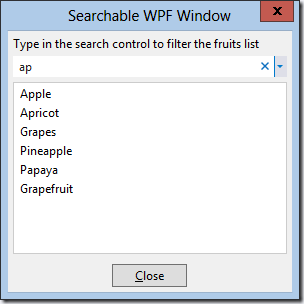
SearchControlWinFormsSearchControlWPF 

To setup the search, one needs to define a container control that will act as parent for the search control and call IVsWindowSearchHostFactory.CreateWindowSearchHost with that container. For WinForms, the most ‘natural’ container choice type is ElementHost, which ensures WinForms-WPF interoperability. For WPF, just pass in any FrameworkElement (e.g. Grid, Border, etc) and the search control will be added as Child of that element.

The two searchable dialogs are implemented in SearchableForm.cs and SearchableWpfWindow.xaml respectively.

In this example there is only one search control per dialog (and the dialogs are ref counted being managed objects), so it’s easier to just implement the IVsWindowSearch interface directly on the dialogs. Should you need to use more search controls in a dialog you’ll have to create separate objects implementing IVsWindowSearch and pass them to IVsWindowSearchHost.SetupSearch when you create the search controls.

Because I implemented the same kind of search in both dialogs, I was able to reuse the search task class SearchableWindowSearchTask. It derives from VsSearchTask class in MPF and does the real search by overriding OnStartSearch method. It compares the typed user strings (from tokens of the search query) with the known fruits read from resources. The results are added to UI via 2 callback methods, clearResultsCallback and addResultCallback passed in constructor of the search task; this way the class can be used to report the results in both a WinForms ListBox or add them to an ObservableCollection bound to by the WPF dialog’s ListBox.

The OnStopSearch() function on the search task is called by the search control on the UI threads; the base class sets the TaskStatus to Stopped and reports completion so there isn’t need to override this function.

The OnSearchStart() function on the search task is called from background threads. This allows performing the actual search job asynchronously and you’d have to get out of your way to block the UI. The search task uses ThreadHelper.Generic.BeginInvoke() to call the UI update callbacks (because WinForms controls can only be accessed on the UI thread that created them, and also ObservableCollections can’t be modified from more than one thread). To make sure the results are not added to the UI by these callbacks after a search is canceled and the task is stopped, the code needs to recheck the value of TaskStatus on the UI thread before calling the callbacks.

There are a few things necessary mentioning when using the search control in a dialog:

  • By default, the search control uses a color scheme that follows the active theme in Visual Studio (e.g. Light/Dark). A dialog usually does not follow the theme colors, and to avoid having a black search control in a light dialog you’d probably want to set UseDefaultThemeColors property in the data source to False, and the control will use a the default color scheme regardless of the current theme.  There is a Utilities class in the Microsoft.Internal.VisualStudio.PlatformUI namespace that allows easier interaction with Gel data sources:  Utilities.SetValue(pSearchSettings, SearchSettingsDataSource.PropertyNames.UseDefaultThemeColors, false);
  • The search control uses data source properties that allows it to resize between Min/Max values (default 100/400). The control’s width will probably not fit by default all the parent container’s width, so you’ll need to set a larger ControlMaxWidth value to make sure the control will stretch to all available space from parent. E.g. use the dialog’s width: Utilities.SetValue(pSearchSettings, SearchSettingsDataSource.PropertyNames.ControlMaxWidth, (uint)this.Width);

Managed Vs. Native Windows

If you have the choice in your window that needs to use search, go with managed implementation. Using the search control from managed code is simpler, as there are a lot of helper functions and classes in Managed Package Framework that helps you with the implementation.

  • The ToolWindowPane class already implements IVsWindowSearch interface, so if your toolwindow derives from this you can quickly made a toolwindow searchable by overriding SearchEnabled=true.
  • The VsSearchTask class can be used as a base class for your search task, to implement the IVsSearchTask members and let you focus on the actual search (derive from it and override OnStartSearch)
  • Classes like WindowSearchBooleanOption and WindowSearchCommandOption in Microsoft.VisualStudio.PlatformUI namespace allow to easily define search options (shown in the search control’s popup as checkboxes or links). The WindowSearchOptionEnumerator class can be used to return a VS-style enumerator over IEnumerable list of search options to be easily returned from IVsWindowSearch.ProvideSearchOptions.
  • The WindowSearchSimpleFilter class allows implementing a search filter (shown in popup as a button) by specifying just the name and filter field. For more advanced filtering derive from WindowSearchCustomFilter class. The WindowSearchFilterEnumerator class can be used to return a VS-style enumerator over IEnumerable list of search filters to be easily returned from IVsWindowSearch.ProvideSearchFilters.
  • There are function like SetValue/GetTypedValue in Microsoft.Internal.VisualStudio.PlatformUI.Utilities class that allow providing search control’s settings in the data source without having to deal with IVsUIObjects
  • There is another utility class, Microsoft.VisualStudio.PlatformUI.SearchUtilities that has methods for creating search queries (IVsSearchQuery) or search tokens from strings, parsing search queries into tokens, etc.

If you choose for a native implementation, you’d have to deal with all the above yourself. You’d have to create your own COM classes even for something simple like changing search control’s setting. In the examples below I’ll give you some sample implementations for IVsUIObjects, IVsSearchTask, IVsWindowSearch, if you have to use filters or options you’d have write your own classes.

In addition, using the search control in a native dialog requires more code to write to ensure Win32-WPF keyboard interoperability and there are also some bugs (more on this later).

The Search control in NATIVE TOOLWINDOWS aND DIALOGS

The Example.SearchControlCpp.zip sample demonstrates using the search control from a native toolwindow and dialog. When built, the sample’s package adds 2 menu items in Tools menu (‘Searchable Native Dialog’/’Searchable Native Toolwindow’).

SearchableWindowsNative

The two menu commands display a dialog and a toolwindow like these:

SearchControlNativeDialog

SearchControlNativeToolwindow

To use a Win32 window as the search control’s parent, one needs to pass in an object implementing IVsUIWin32Element interface and returning the HWND of the parent window from the GetHandle() function. The class CWin32Element does exactly that. The sample uses a Static Win32 control for the search control’s parent.

For both dialog and toolwindow (in SearchControlCppWindowPane and SearchControlCppDialog), the search is setup from OnInitDialog() function that is a handler for dialog’s creation message WM_INITDIALOG.

As mentioned above, there is no help from the native VSL (Visual Studio Template Library in SDK) on dealing with the search interfaces. The example defines its own COM classes CMyDialogWindowSearch (implementing IVsWindowSearch), CMySearchTask (implementing IVsSearchTask). If you need to use filters or options with the search control you’d also need to create your own classes implementing IVsWindowSearchSimpleFilter, IVsWindowSearchCustomFilter, IVsWindowSearchBooleanOption, IVsWindowSearchCommandOption and the enumerators IVsEnumWindowSearchFilters, IVsEnumWindowSearchOptions.

Also, in providing search control settings (e.g. for setting the search type to instant search), you’d have to pass in property values which are objects implementing IVsUIObject interface. In the sample I’m defining a class CVsUIBuiltInPropertyValue that can be used to create values for built-in Gel data types (int, strings, booleans, etc) and a couple of functions like Gel::CreateBuiltInValue to easily create such property values.

The 2 properties mentioned above for using the search control in managed dialogs (UseDefaultThemeColors and ControlMaxWidth) will need to be set for native dialogs, too. In addition, there are a couple of gotchas for using the search control in a native dialog:

  • To ensure the Win32 dialog forwards keyboard input to the WPF control, the HwndSource window created by the search host, child of the dialog needs to intercept the WM_GETDLGCODE message and return DLGC_WANTCHARS | DLGC_WANTTAB | DLGC_WANTARROWS | DLGC_WANTALLKEYS to indicate it wants to process keyboard input. The SearchControlHostProc is the subclass proc that does this.
  • To ensure correct tabbing into the search control I’m subclassing the Static parent of the search control, intercepting WM_SETFOCUS messages and forwarding focus activation to the HwndSource child. WPF will further focus the SearchControl. The SearchControlParentProc is the subclassed window proc of the Static control.
  • To ensure tabbing out the search control, I’m intercepting WM_CHAR(VK_TAB) on the HwndSource and focusing the next parent dialog’s control in tab order.

All these could be done by the VS shell on your behalf, so hopefully in a future VS version these will no longer be necessary from the search implementer…

And there is another problem you may have noticed in the screenshot above: if the height of the parent Static control is bigger than needed by the search control, a black band appears under the search box. This is a bug that will have to be fixed in VS side (set the background brush on the HwndSource at creation time).

Samples used in the article

Friday, September 14, 2012

Using color themes with Visual Studio 2012 Express Editions


Visual Studio 2012 ships out of the box with 2 color themes, Light and Dark. Many users have complained the Light theme is too gray, depressing and ugly, some went as far as to claim they’d commit suicide if they’d be forced to look a whole day to this UI.

Personally I think that’s an exaggeration. However, while I absolutely like the Dark theme, and I could use the Light theme without problems, sometimes I’d prefer a bit more color.

For Visual Studio 2012 Professional/Premium/Ultimate there is a free Visual Studio 2012 Color Theme Editor extension that Matt Johnson wrote. It adds a couple color themes such as Red, Green, Blue, Purple, Tan, Dark with Light editor, Light with Dark editor. It also allows creating new themes, editing colors, etc.

screenshot 

Unfortunately, the extension is not available for Express editions of Visual Studio (and usually Express editions don’t allow loading extensions). It seems like on Express you’d be forced to use only the Light/Dark themes… Well, that’s not true!

Below I’ll tell you how to install the color themes on a Visual Studio 2012 Express, and I’ll exemplify with the newly released Visual Studio Express for Windows Desktop.


1) First, download the zip file http://www.alinconstantin.net/download/VS2012Themes.zip – it contains the 7 pkgdef files defining the colors of the default themes from Matt’s extension.

2) Now, create a folder under "%ProgramFiles%\Microsoft Visual Studio 11.0\Common7\IDE\WDExpressExtensions”, and lets name it “Themes”. Unpack the zip file in that folder.

Pkgdefs

3) Open a ‘Developer Command Prompt for VS2012” window. In the command line, type “wdexpress.exe /updateconfiguration”. This will make Visual Studio to read the pkgdef files on next restart, and import the color themes into registry.

wdexpressupdateconfig

4) Launch Visual Studio Express, and now you should be able to see the new themes and switch them in Tools/Options dialog, Environment/General tab

RedWDExpress


Should someone with a VS Professional/Ultimate install use Matt’s extension to create/edit a custom theme that you want to use on Express, that’s also possible. On the machine with the VS install look under ‘%LocalAppData%\Microsoft\VisualStudio\11.0\Extensions’ folder. There should be some subfolders with random names, and one of them will contain a Colors.pkgdef file containing the theme of interest (open it with notepad and you should see in the beginning the theme’s name to confirm). Copy that file in the WDExpressExtensions\Themes folder, rename it to give it a more appropriate name (repeat steps 2-4), and you should be able to use the new custom theme.