Visual Studio 2012 uses in a couple of windows a control that allows searching the window content. Examples are Quick Launch, tool windows like Toolbox/SolutionExplorer/ErrorList, etc.


The control can be easily reused in your package and added not only into Toolwindows, but to any piece of UI. This article will show you which interfaces to implement or call to implement a searchable dialog or toolwindow, from both native or managed code.
Too many search controls
Various windows in Visual Studio needed search capabilities, and without a common control to use, in time they have implemented their own solutions. Unfortunately, this leads to UI inconsistencies, usability problems and user confusion. In Visual Studio 2010 there were at least 15 different control implementations for the same purpose – simple search. Below are a couple examples of windows from Visual Studio 2012 that still use private implementations (hopefully in time they'll converge and use the common way)
-
Minidump editor window (File/Open/File, pick a dmp file) allows searching in the modules list. Uses WPF edit/button, doesn't have a consistent start icon, no indication the list is filtered, etc.
-
-
VC Project Property pages have an “All options” page that’s searchable yet their box is just an edit that doesn’t offer any indication search is performed.
-
TFS Shelvesets, Build Definitions use text box with watermark image (not a button), again there is no no way to easily clear a search
-
Architecture Explorer uses comboboxes, require enter to start search, there is no other indication search is performed.
If you’re consider adding search capabilities to a window in your package, please don’t perpetuate these inconsistencies and use the control provided by the shell team; if you find missing features or have suggestions for improvement, you can send mails to VS Shell team to consider including in next versions.
Anyway, back to implementation.
Implementation considerations
The common search control in Visual Studio is implemented as a WPF control (the Microsoft.VisualStudio.PlatformUI.SearchControl class). Its data model set in DataContext property needs to be a Gel Microsoft.VisualStudio.Shell.Interop.IVsUIDataSource with specific properties/verb names; an example of such data source is the Microsoft.VisualStudio.PlatformUI.SearchControlDataSource class. The control can be directly referenced from Xaml, however, to make it work you’d have to deal with data sources (setting the necessary properties when the verbs are invoked, e.g. setting search status ‘in progress’ when StartSearch verb is called, etc, because the UI binds directly to some of the data source properties), with data source wrapper classes that are marked internal, etc. It can be done (the editor team used it this way), but clearly that’s not the intended way to use the control.
Instead, the control should be used through Visual Studio interfaces like IVsWindowSearch, IVsWindowSearchHost, IVsSearchTask, etc. Beside making the control accessible from native code (via COM), this abstracts you from the control implementation and let’s you focus only on setting up the search and performing the searches.
The GenerIC Case
In order to implement a searchable window, the owner needs to implement the IVsWindowSearch interface.
To setup the search, you need to create first a search host. Query the SID_SVsWindowSearchHostFactory service from the shell, and call IVsWindowSearchHostFactory.CreateWindowSearchHost() function. Pass in as first argument an object identifying the control to be used as parent for the search control. The type of pParentControl argument depends on the UI technology used in your window, e.g. FrameworkElement for WPF, ElementHost for WinForms, or an object implementing IVsUIWin32Element/IVsUIWpfElement and returning the parent indirectly via GetHandle() or GetFrameworkElement() methods.
Once you have the search host, call IVsWindowSearchHost.SetupSearch() and pass in the object implementing IVsWindowSearch interface. There are a couple of things happening during this call:
- The shell creates the SearchControl WPF control child of the pParentControl specified during host creation
- The shell creates a settings data source and calls IVsWindowSearch.ProvideSearchSetting. Your window gets a chance to override the default values and influence the behavior of the search control (e.g. set a determinate progress type, or change the search to be instant or on-demand, disable MRU items and the popup, etc)
- The shell calls IVsWindowSearch.ProvideSearchFilters and ProvideSearchOptions to discover filter and options that will be shown (if necessary) in the search control’s popup
- The shell creates the necessary data sources and associates them with the search control.
- If the search control uses MRU items, the search control will use the SVsMRUItemsStore to store/retrieve the items under the IVsWindowSearchHost.Category guid.
As the user types in the search control (default using delayed search start) and the search is started, the shell will call IVsWindowSearch.CreateSearch() function. The shell parses the user input and creates an object implementing the IVsSearchQuery interface (this allows for a consistent parsing of search strings into tokens, and identifying some tokens as filtering tokens). In response to the CreateSearch() call, the search control’s user needs to return an object implementing IVsSearchTask. The shell will then call IVsSearchTask.Start() from a background thread to perform the actual search job. Should the user click the X Stop button while the search is running, the Stop() function will be called on the UI thread on the search task. Should the user click the X Clear button after the search completes or is stopped, the shell will call IVsWindowSearch.ClearSearch()
While the search is running, the search task is supposed to call IVsSearchCallback.ReportProgress() if the search control’s progress type was changed to SPT_DETERMINATE. When the search is complete, call ReportComplete to notify completion and the number of results found.
When the search is no longer needed, one can call IVsWindowSearchHost.TerminateSearch() to release early the resources associated with the control, such as the data sources.
Visual Studio also optimizes for the most common use case. To create a searchable toolwindow you don’t have to worry about setting up the search – instead, simply implement the IVsWindowSearch interface on the same class that implements the tool window pane (IVsWindowPane or IVsUIElementPane), and the shell will take from you the burden of setting up the search and will provide a hosting place for the search control in the toolwindow frame area. Even more, classes in Managed Package Framework (MPF) from like Toolwindow already implement the necessary interfaces so you can simply make the search control appear in your window by overriding SearchEnabled property and return ‘true’.
The Search control in managed toolwindows, with shell hosting
Visual Studio SDK Contains a Walkthrough: Adding Search to a Tool Window article which has step-by-step instructions for using the search control in a managed toolwindow. The control is hosted by the shell in the toolwindow frame area, so you don’t need to worry about setting up the search (just override SearchEnabled property). The search-control in the searchable toolwindow from the article supports most recently used (MRU) items, search filters and options, and looks like like this:

Because the article doesn’t link to a downloadable end-to-end solution that you can try right a way, I’ve made available on my website the sample built from the articles instructions. You can download it from Example.TestToolWindowSearch.zip
The Search control in managed dialogs
The Example.SearchControlCS.zip sample demonstrates using the search control from a managed dialog. When built, the sample’s package adds 2 menu items in Tools menu (‘Searchable WinForms dialog’/’Searchable WPF dialog’).

Both dialogs set up a search control and implement similar search capabilities – filter a list of fruits with names read from resources.

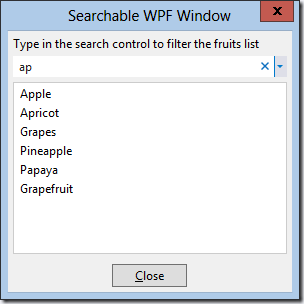
To setup the search, one needs to define a container control that will act as parent for the search control and call IVsWindowSearchHostFactory.CreateWindowSearchHost with that container. For WinForms, the most ‘natural’ container choice type is ElementHost, which ensures WinForms-WPF interoperability. For WPF, just pass in any FrameworkElement (e.g. Grid, Border, etc) and the search control will be added as Child of that element.
The two searchable dialogs are implemented in SearchableForm.cs and SearchableWpfWindow.xaml respectively.
In this example there is only one search control per dialog (and the dialogs are ref counted being managed objects), so it’s easier to just implement the IVsWindowSearch interface directly on the dialogs. Should you need to use more search controls in a dialog you’ll have to create separate objects implementing IVsWindowSearch and pass them to IVsWindowSearchHost.SetupSearch when you create the search controls.
Because I implemented the same kind of search in both dialogs, I was able to reuse the search task class SearchableWindowSearchTask. It derives from VsSearchTask class in MPF and does the real search by overriding OnStartSearch method. It compares the typed user strings (from tokens of the search query) with the known fruits read from resources. The results are added to UI via 2 callback methods, clearResultsCallback and addResultCallback passed in constructor of the search task; this way the class can be used to report the results in both a WinForms ListBox or add them to an ObservableCollection bound to by the WPF dialog’s ListBox.
The OnStopSearch() function on the search task is called by the search control on the UI threads; the base class sets the TaskStatus to Stopped and reports completion so there isn’t need to override this function.
The OnSearchStart() function on the search task is called from background threads. This allows performing the actual search job asynchronously and you’d have to get out of your way to block the UI. The search task uses ThreadHelper.Generic.BeginInvoke() to call the UI update callbacks (because WinForms controls can only be accessed on the UI thread that created them, and also ObservableCollections can’t be modified from more than one thread). To make sure the results are not added to the UI by these callbacks after a search is canceled and the task is stopped, the code needs to recheck the value of TaskStatus on the UI thread before calling the callbacks.
There are a few things necessary mentioning when using the search control in a dialog:
- By default, the search control uses a color scheme that follows the active theme in Visual Studio (e.g. Light/Dark). A dialog usually does not follow the theme colors, and to avoid having a black search control in a light dialog you’d probably want to set UseDefaultThemeColors property in the data source to False, and the control will use a the default color scheme regardless of the current theme. There is a Utilities class in the Microsoft.Internal.VisualStudio.PlatformUI namespace that allows easier interaction with Gel data sources: Utilities.SetValue(pSearchSettings, SearchSettingsDataSource.PropertyNames.UseDefaultThemeColors, false);
- The search control uses data source properties that allows it to resize between Min/Max values (default 100/400). The control’s width will probably not fit by default all the parent container’s width, so you’ll need to set a larger ControlMaxWidth value to make sure the control will stretch to all available space from parent. E.g. use the dialog’s width: Utilities.SetValue(pSearchSettings, SearchSettingsDataSource.PropertyNames.ControlMaxWidth, (uint)this.Width);
Managed Vs. Native Windows
If you have the choice in your window that needs to use search, go with managed implementation. Using the search control from managed code is simpler, as there are a lot of helper functions and classes in Managed Package Framework that helps you with the implementation.
- The ToolWindowPane class already implements IVsWindowSearch interface, so if your toolwindow derives from this you can quickly made a toolwindow searchable by overriding SearchEnabled=true.
- The VsSearchTask class can be used as a base class for your search task, to implement the IVsSearchTask members and let you focus on the actual search (derive from it and override OnStartSearch)
- Classes like WindowSearchBooleanOption and WindowSearchCommandOption in Microsoft.VisualStudio.PlatformUI namespace allow to easily define search options (shown in the search control’s popup as checkboxes or links). The WindowSearchOptionEnumerator class can be used to return a VS-style enumerator over IEnumerable list of search options to be easily returned from IVsWindowSearch.ProvideSearchOptions.
- The WindowSearchSimpleFilter class allows implementing a search filter (shown in popup as a button) by specifying just the name and filter field. For more advanced filtering derive from WindowSearchCustomFilter class. The WindowSearchFilterEnumerator class can be used to return a VS-style enumerator over IEnumerable list of search filters to be easily returned from IVsWindowSearch.ProvideSearchFilters.
- There are function like SetValue/GetTypedValue in Microsoft.Internal.VisualStudio.PlatformUI.Utilities class that allow providing search control’s settings in the data source without having to deal with IVsUIObjects
- There is another utility class, Microsoft.VisualStudio.PlatformUI.SearchUtilities that has methods for creating search queries (IVsSearchQuery) or search tokens from strings, parsing search queries into tokens, etc.
If you choose for a native implementation, you’d have to deal with all the above yourself. You’d have to create your own COM classes even for something simple like changing search control’s setting. In the examples below I’ll give you some sample implementations for IVsUIObjects, IVsSearchTask, IVsWindowSearch, if you have to use filters or options you’d have write your own classes.
In addition, using the search control in a native dialog requires more code to write to ensure Win32-WPF keyboard interoperability and there are also some bugs (more on this later).
The Search control in NATIVE TOOLWINDOWS aND DIALOGS
The Example.SearchControlCpp.zip sample demonstrates using the search control from a native toolwindow and dialog. When built, the sample’s package adds 2 menu items in Tools menu (‘Searchable Native Dialog’/’Searchable Native Toolwindow’).

The two menu commands display a dialog and a toolwindow like these:


To use a Win32 window as the search control’s parent, one needs to pass in an object implementing IVsUIWin32Element interface and returning the HWND of the parent window from the GetHandle() function. The class CWin32Element does exactly that. The sample uses a Static Win32 control for the search control’s parent.
For both dialog and toolwindow (in SearchControlCppWindowPane and SearchControlCppDialog), the search is setup from OnInitDialog() function that is a handler for dialog’s creation message WM_INITDIALOG.
As mentioned above, there is no help from the native VSL (Visual Studio Template Library in SDK) on dealing with the search interfaces. The example defines its own COM classes CMyDialogWindowSearch (implementing IVsWindowSearch), CMySearchTask (implementing IVsSearchTask). If you need to use filters or options with the search control you’d also need to create your own classes implementing IVsWindowSearchSimpleFilter, IVsWindowSearchCustomFilter, IVsWindowSearchBooleanOption, IVsWindowSearchCommandOption and the enumerators IVsEnumWindowSearchFilters, IVsEnumWindowSearchOptions.
Also, in providing search control settings (e.g. for setting the search type to instant search), you’d have to pass in property values which are objects implementing IVsUIObject interface. In the sample I’m defining a class CVsUIBuiltInPropertyValue that can be used to create values for built-in Gel data types (int, strings, booleans, etc) and a couple of functions like Gel::CreateBuiltInValue to easily create such property values.
The 2 properties mentioned above for using the search control in managed dialogs (UseDefaultThemeColors and ControlMaxWidth) will need to be set for native dialogs, too. In addition, there are a couple of gotchas for using the search control in a native dialog:
- To ensure the Win32 dialog forwards keyboard input to the WPF control, the HwndSource window created by the search host, child of the dialog needs to intercept the WM_GETDLGCODE message and return DLGC_WANTCHARS | DLGC_WANTTAB | DLGC_WANTARROWS | DLGC_WANTALLKEYS to indicate it wants to process keyboard input. The SearchControlHostProc is the subclass proc that does this.
- To ensure correct tabbing into the search control I’m subclassing the Static parent of the search control, intercepting WM_SETFOCUS messages and forwarding focus activation to the HwndSource child. WPF will further focus the SearchControl. The SearchControlParentProc is the subclassed window proc of the Static control.
- To ensure tabbing out the search control, I’m intercepting WM_CHAR(VK_TAB) on the HwndSource and focusing the next parent dialog’s control in tab order.
All these could be done by the VS shell on your behalf, so hopefully in a future VS version these will no longer be necessary from the search implementer…
And there is another problem you may have noticed in the screenshot above: if the height of the parent Static control is bigger than needed by the search control, a black band appears under the search box. This is a bug that will have to be fixed in VS side (set the background brush on the HwndSource at creation time).
Samples used in the article


 In the FileSave dialog, make sure to set the file type to .PkgDef (by default the extension saves the file as .VsTheme), like this:
 After exporting the file, copy it in the Themes folder created in step 2) above in your VS Express installation.