Thursday, August 2, 2012

Command Window is not available in Visual Studio Express editions


As other users have noticed in posts like this one, Command Window is a toolwindow that isn’t available in Visual Studio editions to be explicitly displayed by the user.  The menu commands used to display the window are not available.

Fortunately, there are workarounds.

Immediate Window is another related toolwindow that can be used to display variables’ values, evaluate expressions, and to execute commands. The Immediate Window is automatically displayed when entering Debug mode. It can also be displayed on-demand by using the Debug/Windows/ImmediateWindow (Ctrl+D, I) menu item.

Command Window displays automatically a “>” prompt and the user only has to type command names. To execute commands in Immediate Window, the user has to explicitly type the commands by prefixing them with “>”. Full Intellisense support is available here, same as in Command Window. Pre-defined aliases also work fine (of course, trying to execute commands that don’t exist, aka forcing the display of CommandWindow won’t work).

image

A second workaround is to use the Find combobox.

First, make sure the Find combobox is displayed in the Standard toolbar (in Visual Studio 2012 this has been hidden with the command bar reduction work, so you’ll have to use the quick customize menus to bring it back)

image

Then, in the Find combo you can type commands by starting them with “>”, and the full functionality of Command Window will be available there (with Intellisense, aliases like “of”, etc).

image

The only Professional feature related to Command Window that can’t be workaround in Express editions is redirecting the output to a file. The Tools.LogCommandWindowOutput (“log” alias) and Tools.ImmediateMode (“immed” alias) are not available either. Anyway, you won’t need the last one since you are already in Immediate Window, can manually display the toolwindow or execute “>Debug.Immediate” instead from Find combo.

Monday, April 2, 2012

Bing reflection

In case you missed it, Bing home page had today an interesting effect: a reflection of the logo and search box on the water in the animated background image - and the reflections were waving with the water waves...


Bing used animated backgrounds before, but I think this is something new. I'm not sure if this was some sort of April's Fool or a new trend in Bing homepages, but I liked the idea.

Thursday, September 29, 2011

Have a Windows Phone 7? Here’s how to force a Mango update

Microsoft has released Windows Phone 7.5 Mango release, and carriers have already rolling out the update for most models (see list of phones for which Mango update is already rolling). Unfortunately, this roll-out is graduate and it may take weeks until the carrier provider notifies you to install it.

But, via FnPsychopath’s post in the above mentioned article, there is a way to force the Mango update on phones for which Mango has started rolling out:

Connect your Windows Phone to a PC and launch the Zune software
Click on Phone > Settings > Update. Allow the software to tell you whether an update is available. If so, skip this guide. If not continue to the next step.
Time to force the update. Click another button (any of the options above or below the word Update). Then click the Update button again, and this time disconnect your computer from the internet after 1-2 seconds. Do this by pulling out the Ethernet cable, disabling Wi-Fi, etc. If it says your phone is already up to date, you didn't disconnect quickly enough and need to try this step again.
Wait 30 seconds or so and Zune should display a notification that an update is available. This is 7392, the first Mango pre-update.
Now reconnect to the internet and continue with the update process through the Zune software.
After 7392 is fully installed, you may receive a notification that another update is available. If so, install it now. If not, proceed to the next step.
If the second update isn't popping up on its own, repeat steps 3-5, causing the 7403 update to appear.
Install 7403, brave reader. Speeding right along, isn't it? ;)
Mango time! At this point, Zune should automatically start installing the last update, 7720, aka Mango. If it doesn't happen automatically, force it like we did in previous steps.

Nice hack! It worked for me exactly as described. I’m not sure if this is a bug in Zune software or an intentional feature/workaround, but it sure is handy!

Thursday, August 25, 2011

<Strings> Element in VSCT files – ButtonText, CommandName, CanonicalName, MenuText, oh my!


If you ever added a Button definition in VSCT files for Visual Studio menus, you may have wondered what are all the ButtonText, MenuText, CommandName, etc. elements associated with the button.

When you create a new Visual Studio Extensibility project and tell it to create a menu item, accepting the default values, the result is a generated vsct file containing code like this:

      <Button guid="guidVSPackage1CmdSet" id="cmdidMyCommand" priority="0x0100" type="Button">
        <Parent guid="guidVSPackage1CmdSet" id="MyMenuGroup" />
        <Icon guid="guidImages" id="bmpPic1" />
        <Strings>
          <CommandName>cmdidMyCommand</CommandName>
          <ButtonText>My Command name</ButtonText>
        </Strings>
      </Button>


I’m going to tell you upfront it’s indicated to change the format of the <CommandName> element – the project template generator gets it wrong how the value should look like.


So,  where do these values appear in UI?  There is a MSDN article for the Strings Element description, but is a bit confusing, and as writing this article, it contains a couple of mistakes.


To better exemplify where all these elements appear, let’s start by defining a Button command with each child element specified, like so:
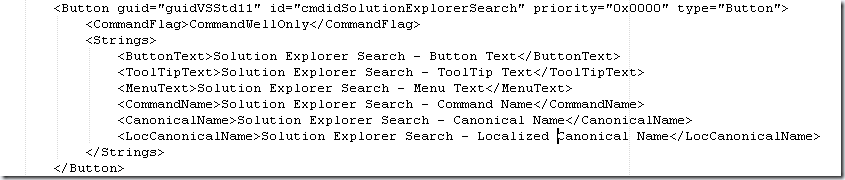


VSCT


Now let’s build the project and see where these strings appear in Visual Studio.


Let’s start with ButtonText. This is a mandatory string, and, if any other strings are omitted, this string will be used to generate the other optional values. This means this string can appear in all places 


As the MSDN page describes, ButtonText is used in UI when the button is placed in a menu controller (such as the dropdown menu of the NewProject button):
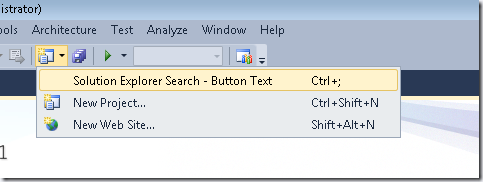


MenuControllers


However, the same ButtonText string is used when the button is placed:


- in the Visual Studio’s Main Menu


- in a toolbar (e.g. in the Standard toolbar)
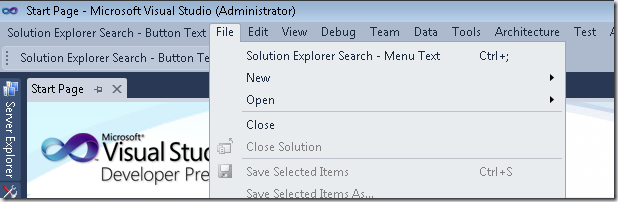


MenuToolbars


In the same picture, notice also that when the button is placed in a menu (e.g. under the File menu), a different string is used – this time MenuText is used.


A button can be easily added to other menus and toolbars by using the Tools/Customize dialog. However, using the dialog it may be a bit confusing because it displays a different string. Neither ButtonText nor MenuText will appear in this dialog, despite the dialog mimicking the looks of menus and toolbars. Here, in the Controls list, is used the CommandName string.
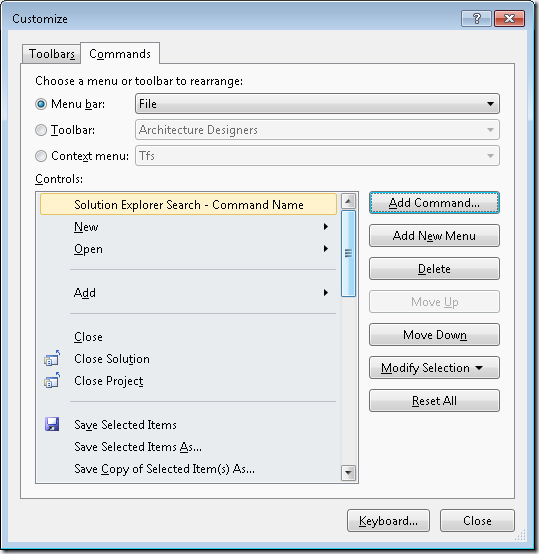


Customize


The CommandName also appears in the Add Command dialog that can be invoked from the Customize dialog, in the Commands list.
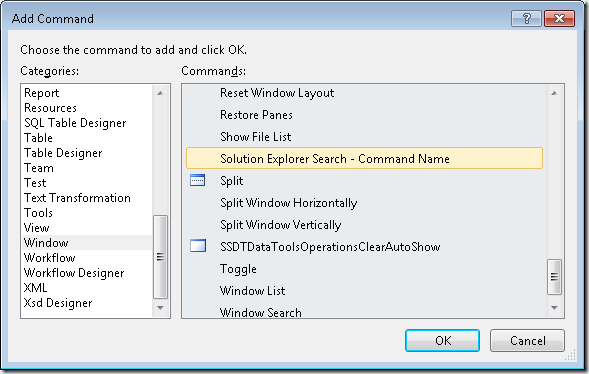


CustomizeAdd


Now you may see why it’s recommended to change the format of the CommandName generated by the project wizard. It may be hard for users to figure out that cmdidMyCommand is actually related to what the user usually sees in the UI for that command, more like “Command Name”. Use a descriptive string for your command names, use spaces and no funky “cmdid” prefixes. Or simply don’t define at all this string, and let the shell display instead the ButtonText string – this is probably what you’ll want in most cases.


The MSDN article indicates CommandName is also used in the Tools/Options dialog in the Keyboard page. This is incorrect. The Keyboard dialog displays the LocCanonicalName string (or in it’s absence, the ButtonText string), after stripping unwanted characters such as spaces, ellipses, ampersands, etc.
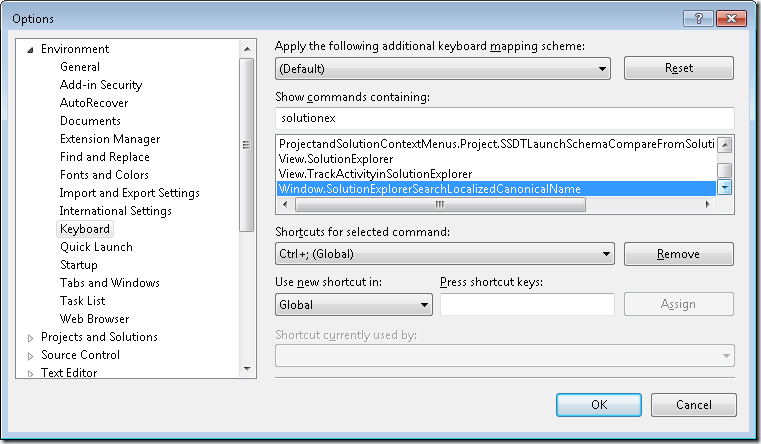


Keyboard


The LocCanonicalName string  is also displayed in the Command tool window, in the Intellisense/autocomplete popups.
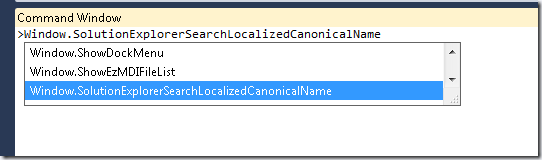


CommandWindow


Again, the MSDN page is a bit misleading here, as it seem to suggest that CanonicalName string appears in the Command Window (after being stripped of ampersands, spaces, etc).


While the autocomplete popup only displays the LocCanonicalName string,  both CanonicalName and LocCanonicalName can be used for command execution, but you have to type the canonical name string. Notice that execution succeeded no matter which of these strings was typed, whereas trying to execute an inexistent command displayed an error message.
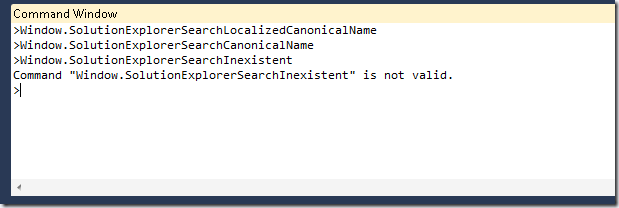


CommandWindow2


Again, if one of these strings (or both) is omitted from the button’s definition, the ButtonText is used instead to generate a canonical name for command execution and/or the autocomplete popup.


And finally, the ToolTipText string is used for the button’s tooltip, when the button is placed:


- in the Visual Studio’s main menu, as a top-level button


- in a toolbar (in this case the keyboard shortcut, if any, is also displayed in the tooltip)


The tooltip is not displayed when the button is placed as a menu item (e.g. in the File menu) as the MSDN page indicates.
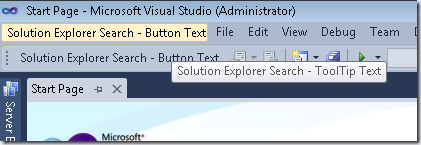


TooltipText

Wednesday, July 20, 2011

Facebook scams and removing Facebook posts


Facebook scams are proliferating lately, and I just got tricked by one of them, too :-(
It starts with a friend sharing a link like "Crazy girl must be nuts but also a damn smart for mak1ng this video". If you click it and follow the "age verification" prompts that follow you'll only help the malware spread - as it will add without your knowledge an identical post to your wall.
The Jaa button in the “age verifications” prompts is not the German word for Yes, but the Finnish word for Share :-)
So, if you see such posts, don't follow the links!

Graham Cluley security analyst at Sophos Antivirus describes better similar malware on his blog
http://nakedsecurity.sophos.com/2011/07/12/a-spider-under-the-skin-its-a-facebook-survey-scam/

If  you made the mistake of following the link, and now you have an unwanted post on your wall, here is how to delete the post from the Facebook page: Hover the post in your wall. An X blue button will appear in the right of the message. Use the button

image

Click the button to open a context menu and choose to Report it – it will remove it and report as malware. The same removal X button can be accessed from the post’s thread page (that you can access by clicking the link with the timestamp of the post, highlighted above)

image

Monday, July 18, 2011

“Visual Studio was my idea”


Not mine, but yours. Well, it’s not entirely true, but you get the idea. If you have suggestions for improving the next versions of Visual Studio, you can make your voice heard by posting or voting on existing posts at  http://visualstudio.uservoice.com

Tuesday, July 12, 2011

Samsung Focus not charging


Today I run into a hardware bug with my Samsung Focus – no matter how long I’d keep the phone plugged in, it showed the same battery level, somewhere at 30%. I reset the phone, but instead of fixing the problem, it made it worse - now the battery level was shown at 0%, and again, keeping the phone plugged in had no effect. The phone was simply not charging. Now every time I was unplugging the phone it displayed notifications that battery level is too low and I should plug it back in.

I searched the net and I found that other users had similar problems, and the “fix” was to return the phone to the carrier provider for a refund/exchange. Ugh.

Then I found another user who fixed his phone by resetting the phone in diagnostics mode. Fortunately his solution worked for me, too. Here it is:

  • Start the phone application and show the keyboard
  • Type ##634# - this enters the phone diagnostics mode
  • Type *#2*# - this displays the battery information. All the numbers on the first page in the (MV) section were shown as 0% or 0mV.
  • Now reset the phone (by keeping pressed the power button until the phone turns off, then press it again to turn the phone back on)

After reset, the battery level started showing 100% (it was about time, after being kept so long plugged in), and re-entering the battery information diagnostics page seemed to agree – now it was showing non-null numbers, all good.

FocusPowerDisplay

You can find more interesting diagnostics codes about Samsung Focus on XDA-Developers forum page.